
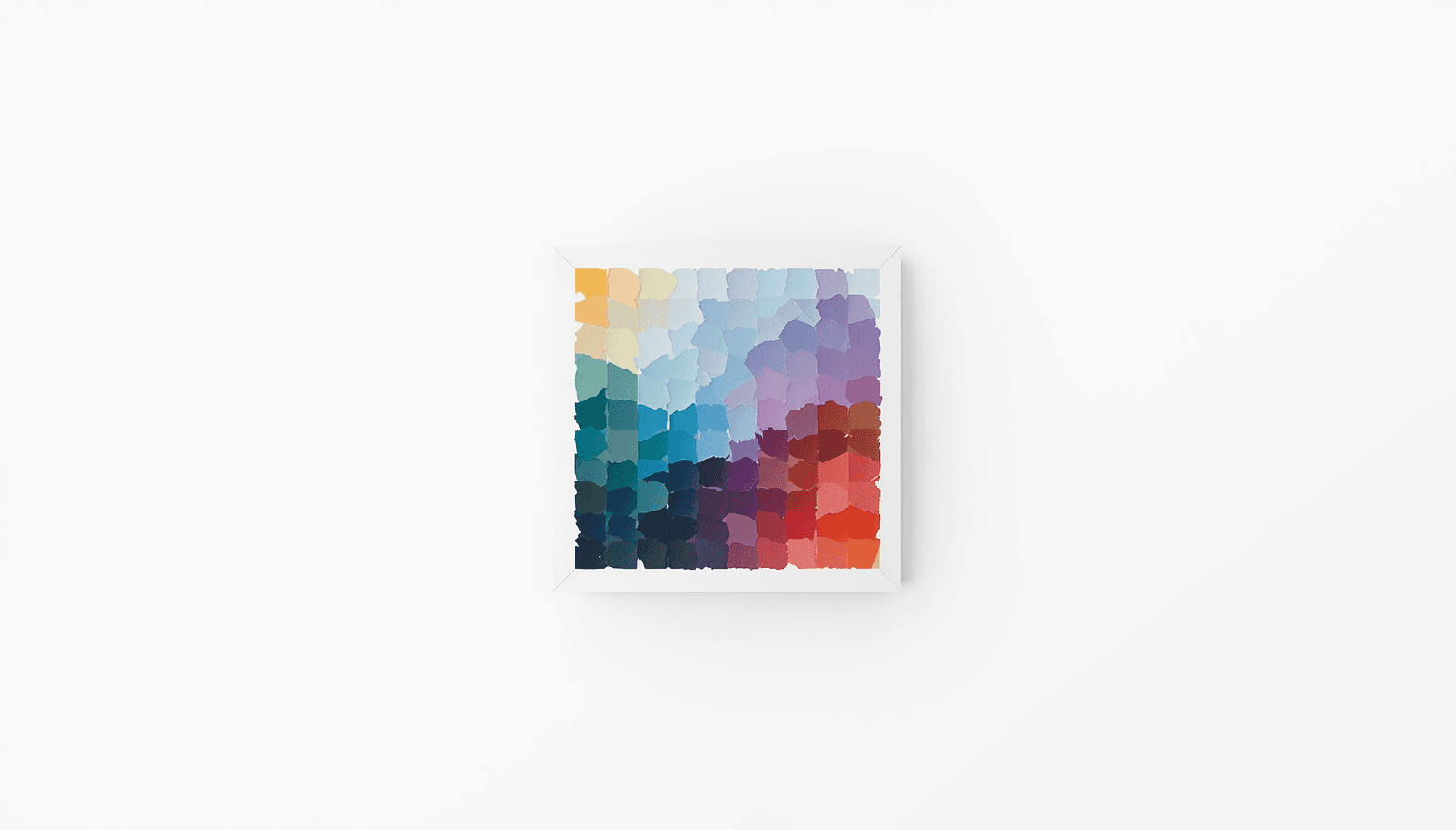
Every design project starts with the same problem: you need colors that work together, fit the mood you are going for, and hold up across every application from a small icon to a full-screen hero section. Finding those colors used to mean hours of trial and error. A good color palette generator cuts that process down to minutes.
ThemePalette's free online color palette generator is built for designers, developers, brand builders, and anyone who works with color professionally. It does not just produce random color combinations — it uses color theory principles to generate harmonious, usable palettes that you can immediately deploy in real projects.
This guide explains what makes a color palette generator genuinely useful, how to get the most from the tool, and what to do with the palettes you create.
What a Color Palette Generator Actually Does
A color palette generator takes a starting point — a base color, an uploaded image, a mood, or a random seed — and produces a coordinated set of colors that work together visually and functionally.
The keyword here is "coordinated." Random color combinations are easy to generate. The challenge is generating combinations that reflect actual color theory: complementary pairs that create visual tension without chaos, analogous sets that feel unified without being monotonous, and triadic combinations that feel balanced despite their variety.
A well-built generator handles this automatically. You focus on the mood and intent of your project. The tool handles the mathematics of color relationships, contrast ratios, and harmonic structure.
ThemePalette's generator uses the following color harmony models, selectable based on your project needs:
Monochromatic — a single hue explored across its full lightness and saturation range. Produces clean, unified palettes ideal for minimalist design, single-brand applications, and interfaces that need visual coherence without distraction.
Complementary — two hues opposite each other on the color wheel. Creates strong contrast and visual energy. Best used when one color dominates and the other serves as a focused accent.
Analogous — three to five adjacent hues. Feels natural and harmonious — the palette equivalent of colors that naturally occur together in nature. Suits warm lifestyle brands, organic products, and anything that wants to feel calm and considered.
Triadic — three evenly spaced hues around the wheel. Produces vibrant, balanced palettes that feel lively without being chaotic. Requires careful saturation management to prevent visual overload.
Split-complementary — a base color plus the two colors flanking its complement. Offers the contrast energy of a complementary pairing with slightly more tonal flexibility.
Understanding which harmony type fits your project is covered in depth in the color theory guide on ThemePalette — if you are new to these relationships, it is the right place to start before generating your first palette.
Why Free Online Color Palette Generators Matter for Designers
The best design tools remove friction between an idea and its execution. A color palette generator does exactly that at one of the most critical stages of any visual project.
Consider what the alternative looks like: opening a color picker, selecting a hue, manually trying combinations, adjusting saturation and lightness by eye, then checking each pair for contrast compliance. For a five-color palette, this process can take an hour. For a complete brand color system, it can take a day.
A good generator compresses that to minutes — and the result is not a compromise. Palettes generated using sound color theory principles are often better than ones assembled by manual guesswork, because the underlying mathematics produces relationships that the human eye finds genuinely satisfying.
According to research from the Institute for Color Research, people make a subconscious judgment about a product or environment within 90 seconds of initial viewing, and between 62 and 90 percent of that assessment is based on color alone. The quality of your palette is not a peripheral design concern — it is a central determinant of how your work is received.
How to Use ThemePalette's Color Palette Generator
Step 1: Choose Your Starting Point
You have three ways to begin:
Start with a color. If you know your brand's primary color, or have a specific hue in mind, enter the hex code directly. The generator uses it as the anchor and builds a complete palette around it according to your chosen harmony type.
Start with an image. Upload any photo, illustration, or reference image and the generator extracts the dominant colors automatically. This is the fastest way to build a palette from an inspirational reference — a piece of photography, a product shot, a moodboard image.
Start fresh. Hit generates without a starting point and the tool produces a random palette using the selected harmony model. This is useful for discovery — finding combinations you would not have considered independently.
Step 2: Select a Harmony Type
Choose the color harmony model that fits your project's visual intent. If you are unsure, start with analogous for warmth and cohesion, or complementary for a palette with clear contrast and focal hierarchy.
Step 3: Refine
Lock any colors you want to keep and regenerate the rest. Adjust individual colors using the hue, saturation, and lightness sliders. Preview the palette on sample UI layouts to see how it behaves in a real interface context rather than as isolated swatches.
Step 4: Check Accessibility
Before finalizing, use the built-in contrast checker to verify that your intended text-on-background pairs meet WCAG AA requirements (4.5:1 for normal text). This step is faster to run now than to fix after a design is built.
Step 5: Export
Export your palette as hex codes, RGB values, CSS custom properties, or JSON tokens — ready to paste directly into Figma, your stylesheet, or your design system token file.
From Generated Palette to Working Color System
A generated palette is a starting point, not a finished system. Taking those four or five core colors and expanding them into a complete, production-ready color system requires a few additional steps.
Build tonal scales. For each core color, generate a range of lighter and darker values. A typical design system uses nine or ten tonal steps per hue — from near-white through the base color to near-black. This gives you variants for backgrounds, hover states, borders, disabled elements, and text without needing additional base colors.
Assign roles explicitly. Before applying colors to components, decide which color serves which function: primary action, secondary action, background, card surface, primary text, secondary text, success, warning, error. Palette colors without assigned roles get applied inconsistently across a product.
Define your neutrals separately. Most projects need three to five neutral values — a near-white background, a light surface for cards, a mid-gray for borders, a dark gray for secondary text, and a near-black for headings. Neutrals should be temperature-matched to your palette: warm primaries sit better with warm-tinted neutrals, cool primaries with cool-tinted ones.
The trending palettes section on ThemePalette shows how fully developed color systems are structured — useful for understanding how generated palettes translate into complete design systems.
Color Palettes for Specific Use Cases
Different project types have different palette requirements. Here is a brief orientation by category:
Brand Identity
Brand palettes prioritize recognition and longevity over trend alignment. The primary color needs to be distinctive within the brand's competitive category, versatile enough to work across every touchpoint from digital to print, and stable enough to remain relevant for years. Generate several candidates, then filter by category differentiation and cross-context versatility.
Web and UI Design
UI palettes prioritize functional hierarchy over expressive character. The primary color handles interactive elements — buttons, links, active states. Neutrals handle the majority of the surface area. Semantic colors (success, warning, error, info) must be clearly distinguishable from each other and from the primary. Accessibility compliance is non-negotiable.
Social Media and Content Design
Content palettes prioritize visual cohesion across a feed or board. The palette needs to photograph well, work across a variety of content types (photography, illustration, typography), and maintain consistency without being rigid. Generate a palette from your strongest existing content image and use it as the basis for future visual decisions.
Presentation and Print
Print palettes require CMYK conversion verification. A color that looks correct on screen may shift noticeably when printed in CMYK. Export your hex codes, then verify the CMYK equivalents through a color conversion tool before finalizing for any printed application.
What to Look for in a Free Color Palette Generator
Not all generators are equal. When evaluating tools, these are the capabilities that distinguish genuinely useful ones from those that merely produce random color combinations:
Color theory foundation. The tool should generate palettes based on established harmony principles — not purely random combinations. Random generation has its place for inspiration, but it should be one option among several, not the only mode.
Accessibility integration. Contrast ratio checking should be built in, not an afterthought. Any generator that does not flag low-contrast combinations is missing a critical feature for professional use.
Multiple export formats. Hex codes alone are insufficient. A tool used in professional design workflows needs to export RGB, CSS variables, and ideally design token formats like JSON.
Image extraction. The ability to generate a palette from an uploaded image significantly expands the tool's utility — it turns any visual reference into a usable starting palette.
Adjustability. Generated palettes should be editable. Locking individual colors and regenerating the rest is a basic requirement for practical use.
Theme Palette's generator is built with all of these capabilities as standard — designed from the ground up for professional design workflows, not just casual color exploration.
Common Color Palette Generation Mistakes
Accepting the first result. Palette generators produce starting points. Generate several variations before deciding which direction to develop. The third or fourth generation often produces something significantly stronger than the first.
Using generated palettes without accessibility checks. A palette that looks balanced visually may still contain text-on-background combinations that fail WCAG contrast requirements. Always verify before applying to a real project.
Ignoring tonal variety. A palette of five equally saturated, similarly valued colors lacks the range needed for a complete design system. Effective palettes include a clear range from light to dark, not just different hues at similar values.
Skipping the temperature check. Warm and cool colors can coexist in a palette, but mixing warm and cool neutrals without intention creates visual dissonance. Ensure your neutrals are temperature-consistent with your primary colors.
Over-generating. More colors are not better. A palette of eight or ten colors from a generator is difficult to apply consistently. Work with four to six, then expand through tonal scales if you need more range.
Conclusion
A free online color palette generator is one of the highest-leverage tools in any designer's workflow — it compresses hours of manual color exploration into minutes, applies color theory automatically, and produces palettes that are grounded in real harmonic relationships rather than guesswork.
ThemePalette's generator is built for designers who need results they can actually use: accessible, theory-driven, multi-format palettes that move directly from generation to application. Whether you are starting a new brand, designing a UI, building a content aesthetic, or simply exploring, the tool is there to remove friction from one of design's most foundational decisions.
Start generating at themepalette.com — your next palette is a click away.